%20copy-1.png?width=300&height=80&name=petszel-horizontal%20(3)%20copy-1.png)
To ensure Petszel can securely access the information it needs—like API data, medical records, and receipts—we need you to request a new user account in Shelter Buddy with the proper permissions.
Option 1: Create your user credentials
- Create your user credentials. If you are a Shelter Buddy Admin, you can create your own API user and password. Follow the instructions here.
- Determine your Shelter URL ID. This is the first part of your Shelter Buddy login domain. For example, "demo" would be the Shelter URL ID below:

- Add your credentials to your Petszel dashboard.
- Log in to your Petszel dashboard with the username and password you signed up with.
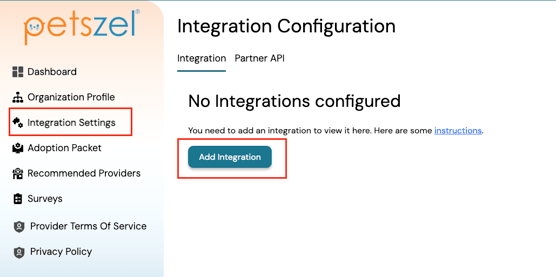
- Go to Integration Settings > Add Integration
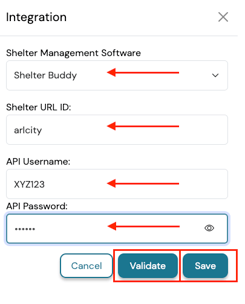
- In the flyout menu, select Shelter Buddy from the Shelter Management Software dropdown.
- Enter the credentials the Shelter Buddy team provided you under Shelter URL ID, API Username, and API Password.
- Click Validate. Then Save.
Option 2: Email Shelter Buddy Support
-
Send an email to:
support@shelterbuddy.zendesk.com
CC:support@petszel.com -
Subject Line:
Request to Create Petszel User -
Email Body (you can copy/paste this):
CopyEditHi Shelter Buddy team,
We’re working with Petszel to automate our adoption data reporting. Could you please create a new user for Petszel with the appropriate access to API endpoints, medical records, and receipts?
Please copy support@petszel.com on any follow-up.
Thank you! - Once Shelter Buddy emails you the credentials, add them to your Petszel dashboard.
- Log in to your Petszel dashboard with the username and password you signed up with.
- Go to Integration Settings > Add Integration
- In the flyout menu, select Shelter Buddy from the Shelter Management Software dropdown.
- Enter the credentials the Shelter Buddy team provided you under Shelter URL ID, API Username, and API Password.
- Click Validate. Then Save.
That’s it! Once the user is set up, the Petszel team will handle the rest and confirm when the connection is live.
Need help? Email us anytime at support@petszel.com