%20copy-1.png?width=300&height=80&name=petszel-horizontal%20(3)%20copy-1.png)
🔐 Step 1: Get Admin Access
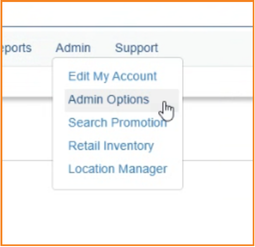
Only a PetPoint user with Admin setup access can create the necessary user account. This person should be able to see the “Admin” option in the top menu bar of PetPoint:
👤 Step 2: Create a Person Record
-
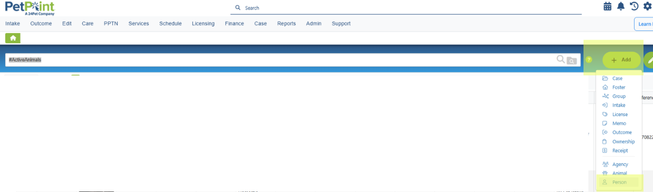
From the home screen, click the green “plus” button and choose Add Person.
-
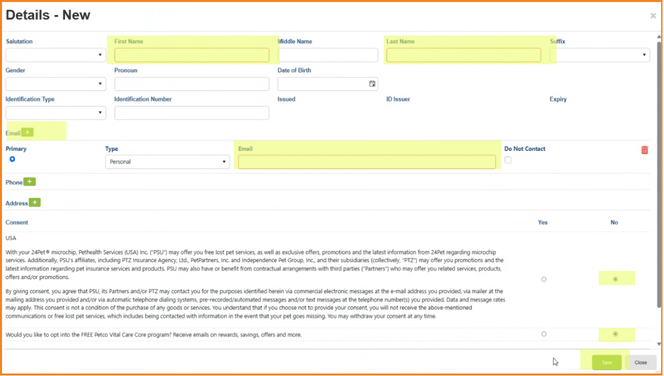
Fill in the fields as follows:
-
First Name:
PostAdoption -
Last Name:
Support -
Email:
postadoption+[Your Shelter's PetPoint ID]@petszel.com(e.g.,postadoption+USFL45@petszel.com) Yes, please use the "+" in the email! -
24Pet Consent:
No -
Petco Vital Care:
No -
All third-party consents:
No
-
-
Click Save.
Next:
-
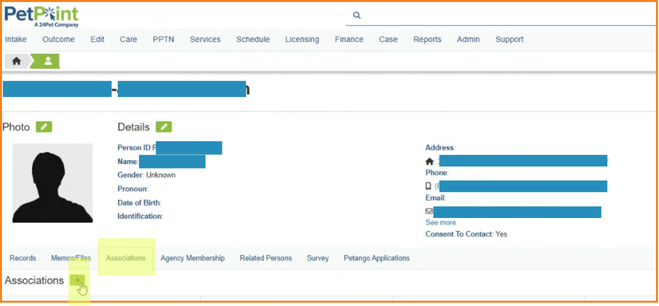
Search for the person you just created.

-
Click on their record.
-
Navigate to the Associations tab.
-
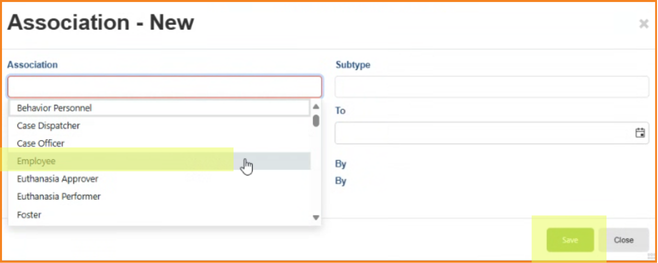
Click the green plus and add the association as an Employee. Click Save.
👩💻 Step 3: Create the User + Assign Access
-
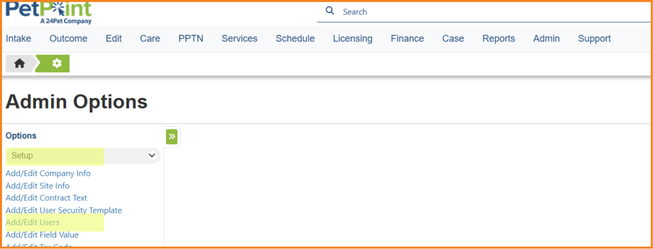
Go to Admin > Admin Options.
-
From the drop-down, select Setup > Add/Edit Users.
-
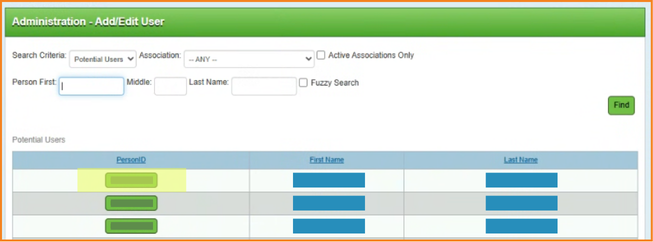
Change search criteria to
Potential Users. -
Search using the First Name:
PostAdoption. -
Click the green button next to the correct record.
User Details
Fill in the top section as follows:
-
Username:
[Your Shelter's PetPoint ID]postadoption(e.g.,USFL45postadoption) -
Password: Your choice (and confirm it)
-
Email:
postadoption+USXXYY@petszel.com(what you created above) -
User Department: Select your shelter’s Adoption department
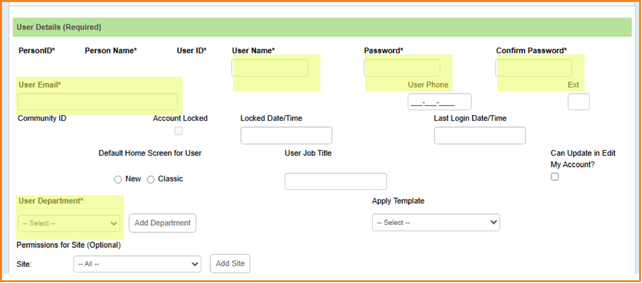
Leave everything else blank.
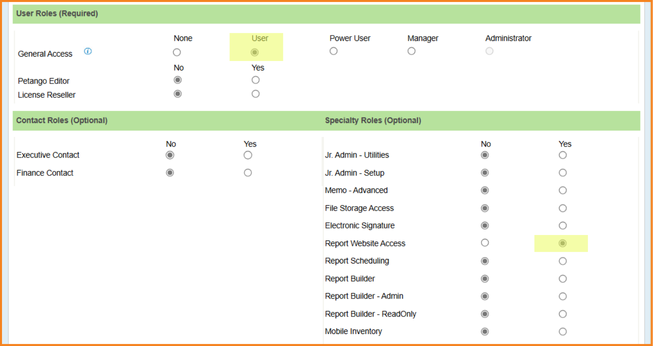
Assign Roles
-
General Access:
User -
Specialty Roles:
Report Website Access = Yes -
Click Update
🆔 Step 4: Add the credentials in your Petszel dashboard.
- Log in to your Petszel dashboard with the username and password you signed up with.
- Go to Integration Settings > Add Integration
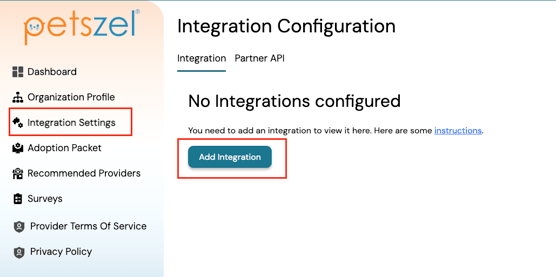
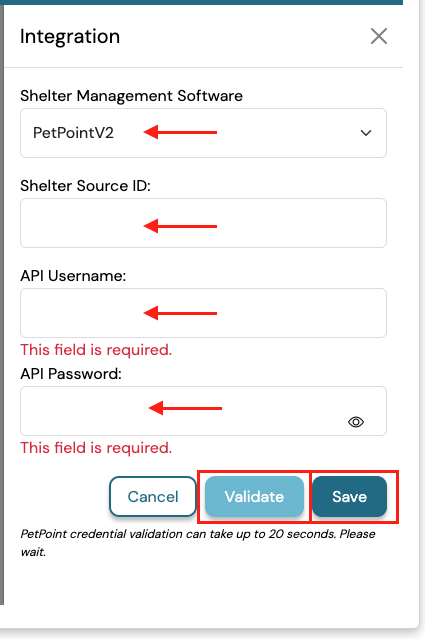
- In the flyout menu, select PetPoint from the Shelter Management Software dropdown.
- Enter
-
Shelter ID
-
Username
-
Password
-
- Click Validate. Then Save.
- Go to Integration Settings > Add Integration
Your PetPoint setup for Petszel is complete! Now go pet a dog 🐶 Our team will handle the rest on the Petszel side and confirm when the connection is live.
Need help? Email us anytime at support@petszel.com